Store design
Hide home page sections without deleting them
Prepare a section in private and show it when it's ready, hide a single slide or item, and add a new section exactly where you want it.
- Where
- Storefront Design › Design › Home page
- Works on
- Sections, slides, testimonials and items
- Shoppers see it
- After you publish or save to your live page
- Add between rows
- Point at the gap and click +
Get a new section ready without shoppers seeing it half done. You can now hide any home page section, or a single slide, testimonial or item inside it, and show it again in one click. Nothing is deleted, so your photos and text stay exactly as you left them.
What changed
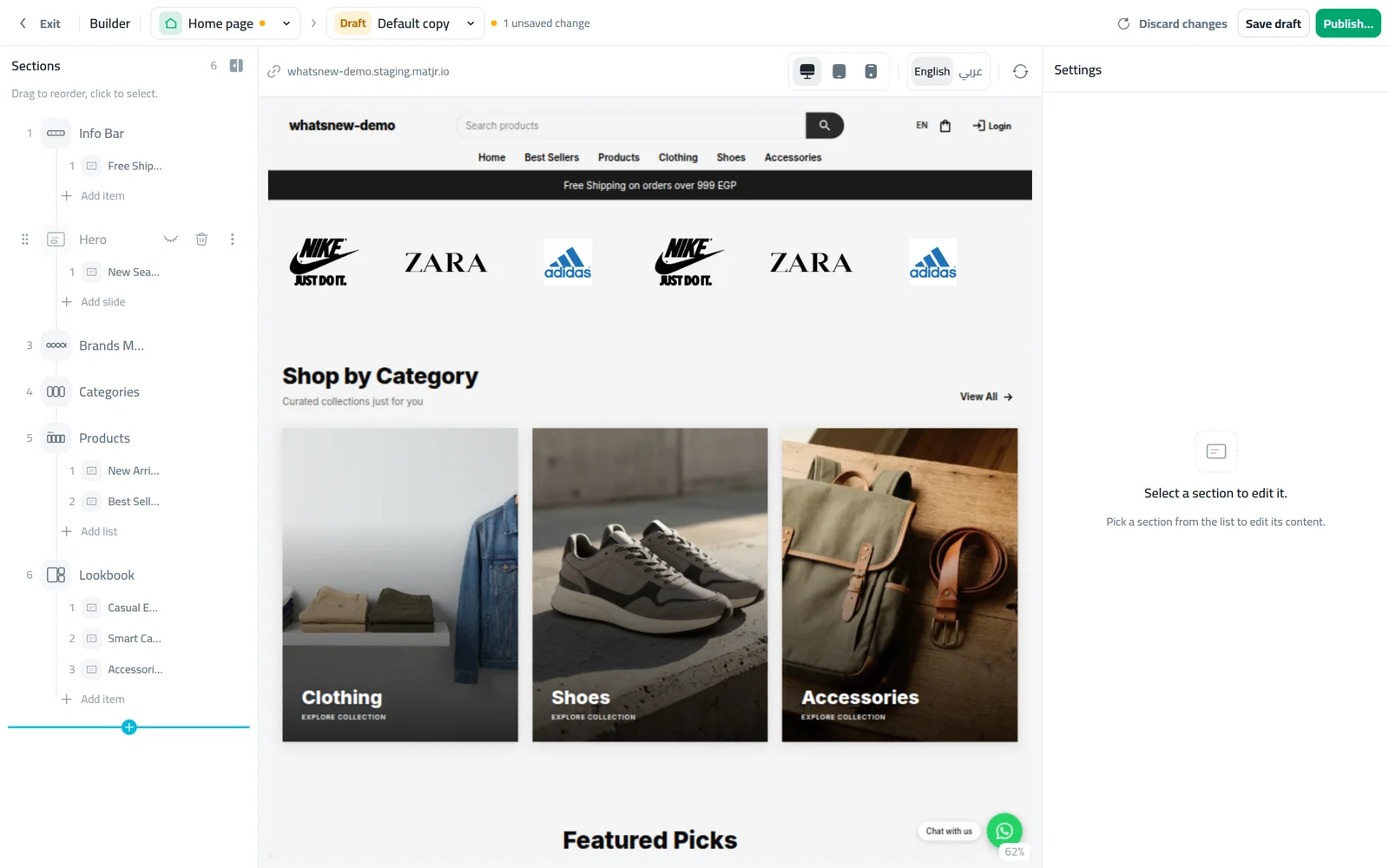
Every row in the Sections list of the builder now has an eye icon next to the bin. Click it to hide the section. The row turns grey with a crossed-out eye, and the section disappears from the preview. You can still click, edit and drag a hidden section.
The same eye sits on the rows under a section: slides, testimonials, images and other items. Hide one and the rest keep showing. If you hide every item in a section, shoppers do not see the section at all.
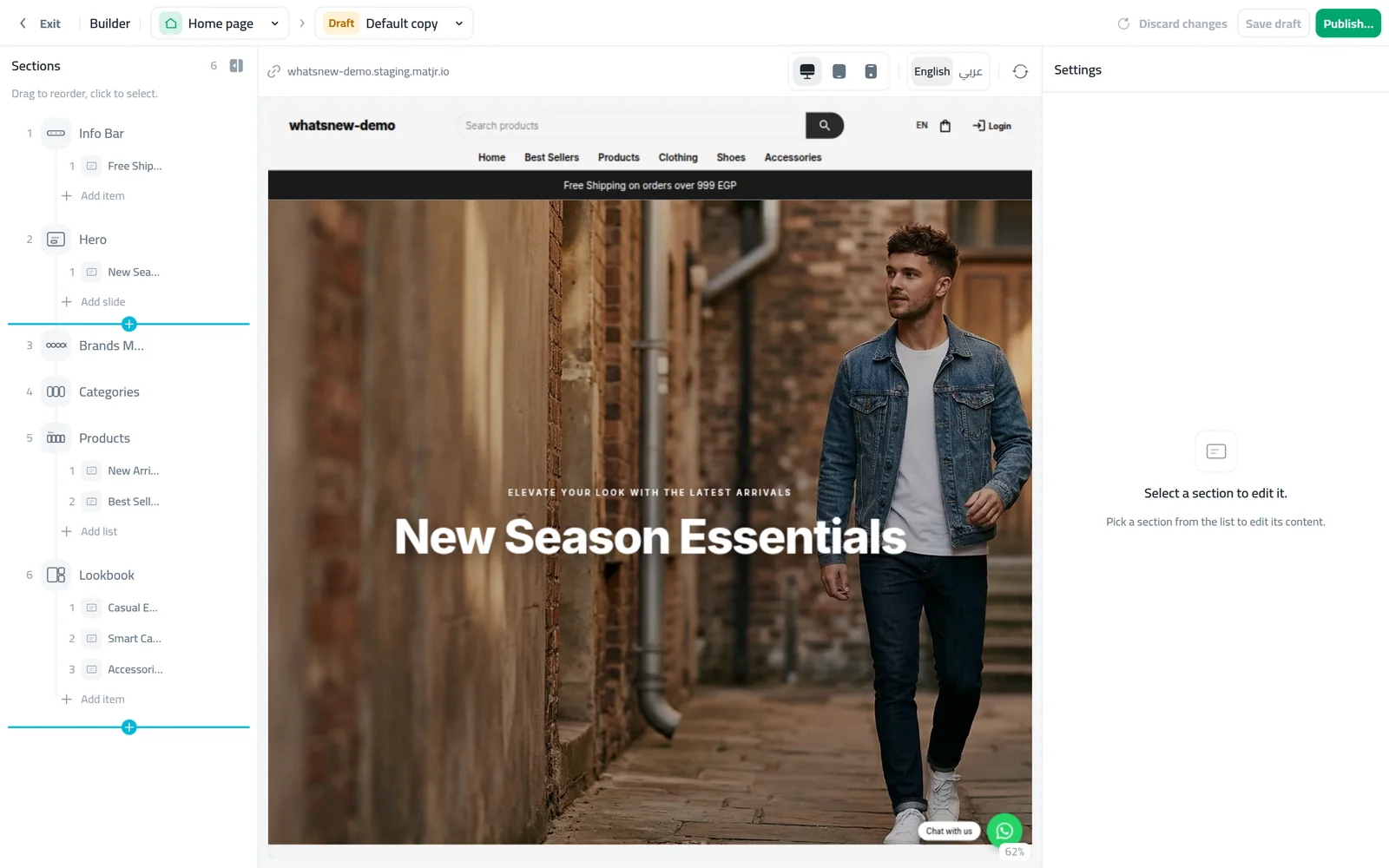
You can also add a section exactly where you want it. Point between two rows and a blue line with a + appears. Click it, pick a section, and it goes in at that spot. The big button at the end of the list is now a + after the last row.
How to use it
Open Storefront Design, click Design and choose the Home page. In the Sections list, point at a section and click the eye icon (Hide section). The same icon is on each slide or item row.
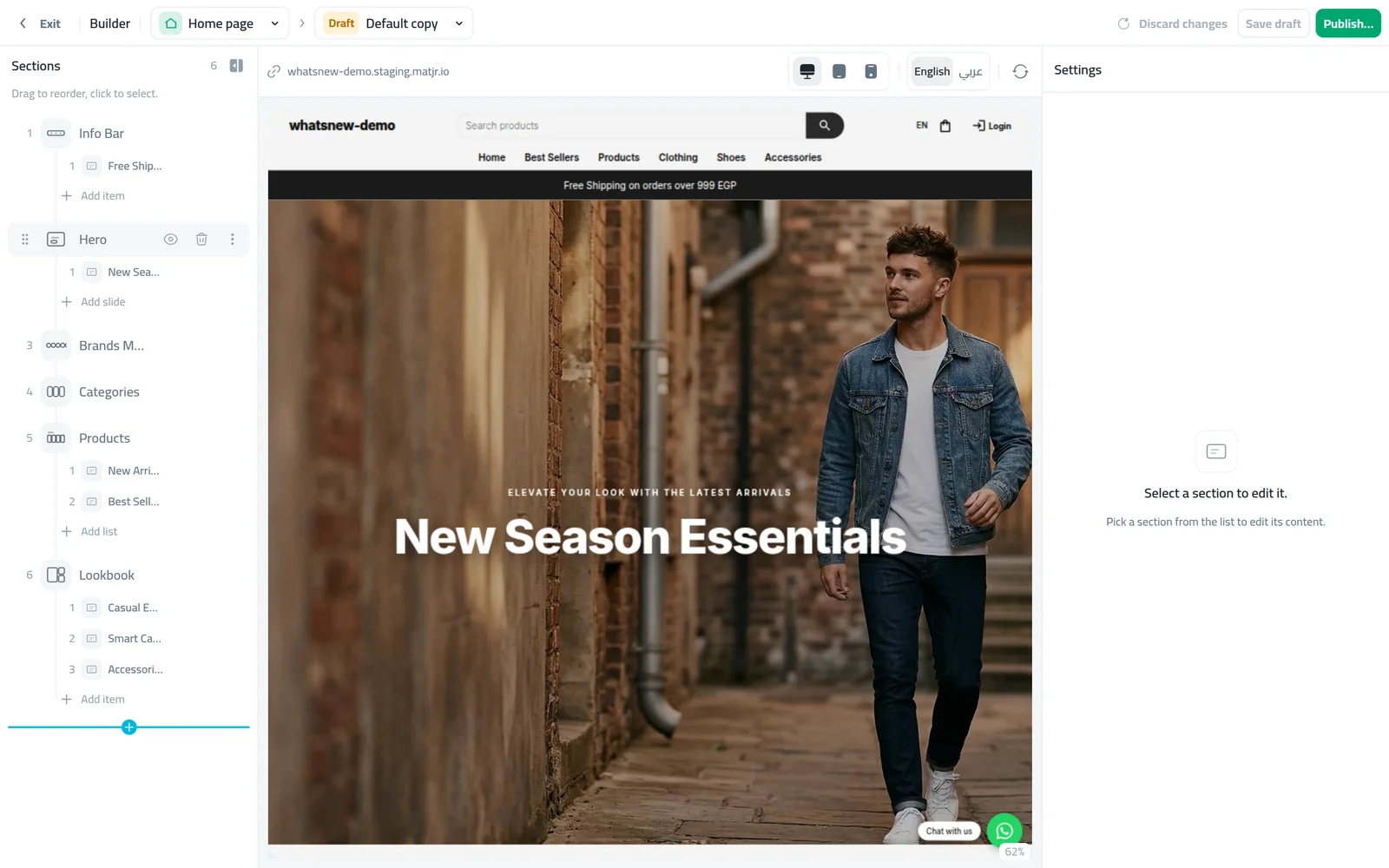
The hidden section turns grey and leaves the preview. Click the eye again (Show section) to bring it back in the same place. When you are done, click Save draft, then Publish…. If you are editing your live page, click Save to live page.
To add a section between two rows, point at the gap between them and click the + on the blue line (Add section here). Choose the section type and it goes in at that spot.
Good to know
- Hiding is part of your draft. Shoppers see the change only after you publish, or save to your live page.
- Hidden sections are left out when the builder checks for sample photos before you publish.
- If every section is hidden, your home page shows your products instead of an empty page.
- On phones and tablets, the eye and the + are always shown, so you do not need to point at a row first.
- Step by step: how to hide a section on your store home page. New to the builder? Read how to design your online store.
Frequently asked questions
Does hiding a section delete it?
No. Its photos, text and settings stay. Click the eye again to show it in the same place.
When do shoppers stop seeing a hidden section?
When you publish the draft, or right after you save if you are editing your live page.
Can I hide one slide and keep the others?
Yes. Each slide or item under a section has its own eye. If you hide all of them, the section is hidden too.
Can I still edit a hidden section?
Yes. Click it to edit it or drag it to a new place. It stays hidden until you show it.
Try it on your own store
Start your free trial. No credit card required.