Orders
Handle orders faster with the new order page
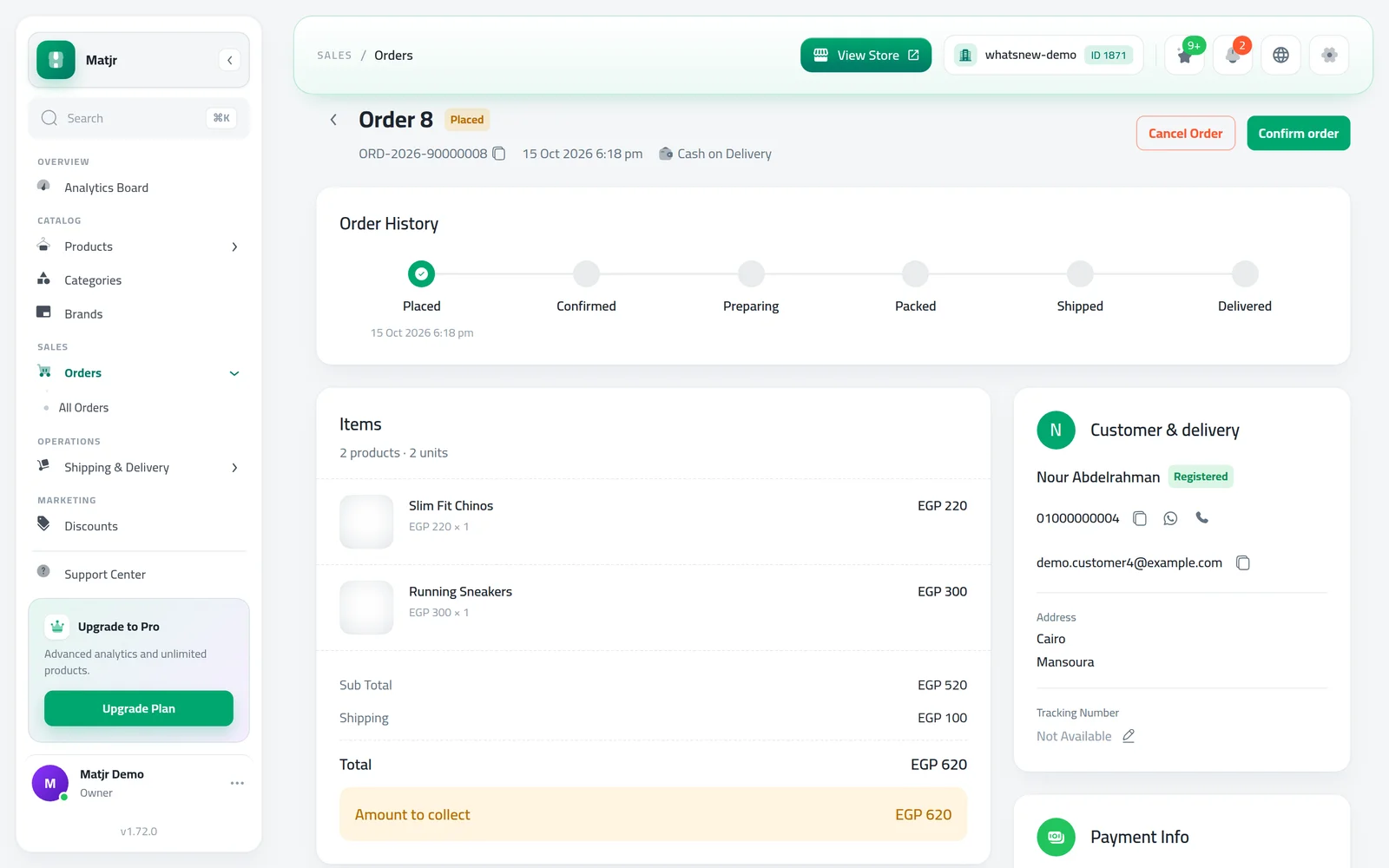
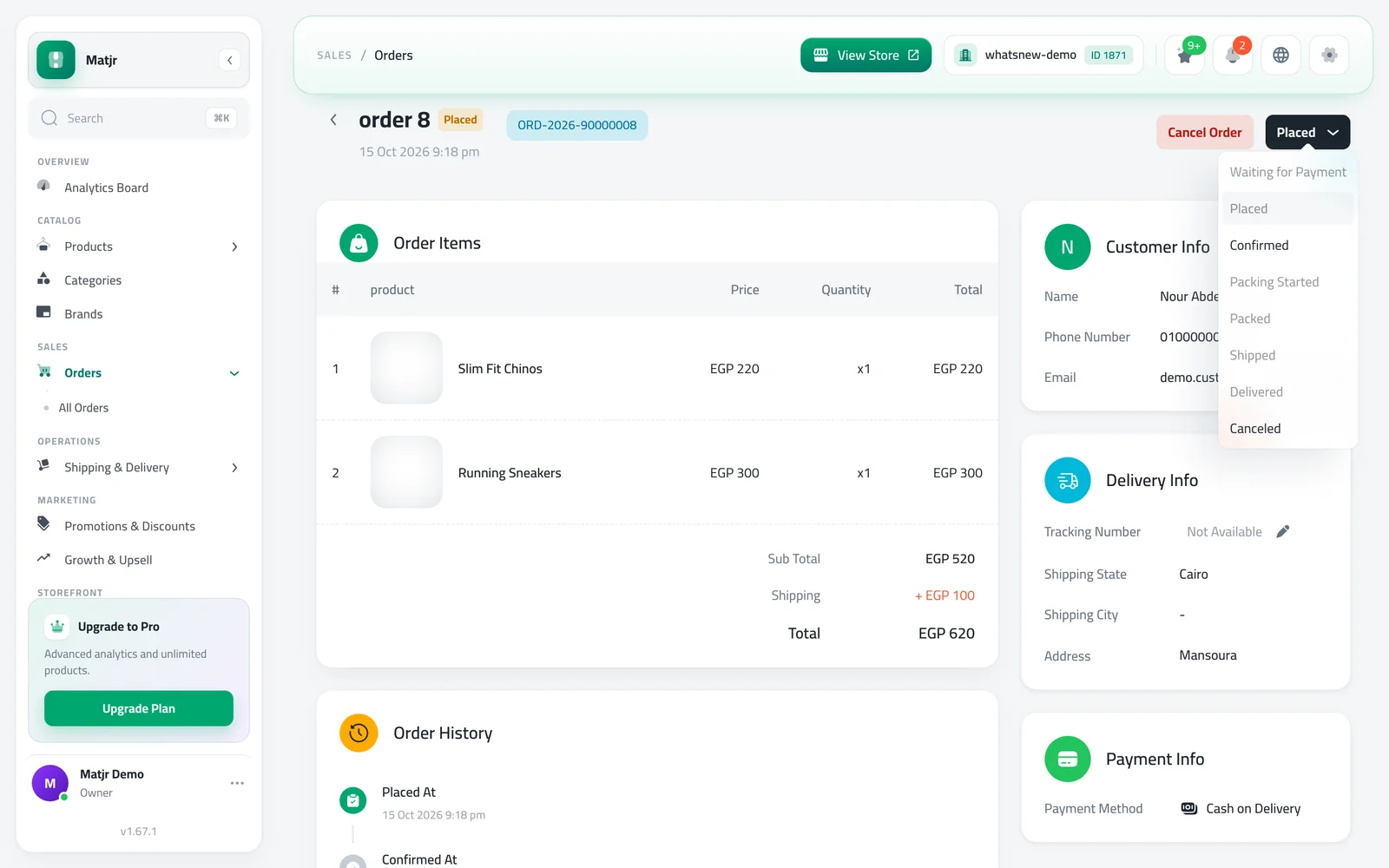
One button moves the order to its next step, a progress bar shows where it stands, and you can call or WhatsApp the customer from the order.
- Where
- Orders › any order
- Next step
- One button that names it, like Confirm order
- Reach the customer
- Copy, WhatsApp or Call next to the phone
- Cash on delivery
- Amount to collect shown on the order
Spend less time on every order. The order page now tells you what to do next, how to reach the customer and how much to collect, all on one screen.
What changed
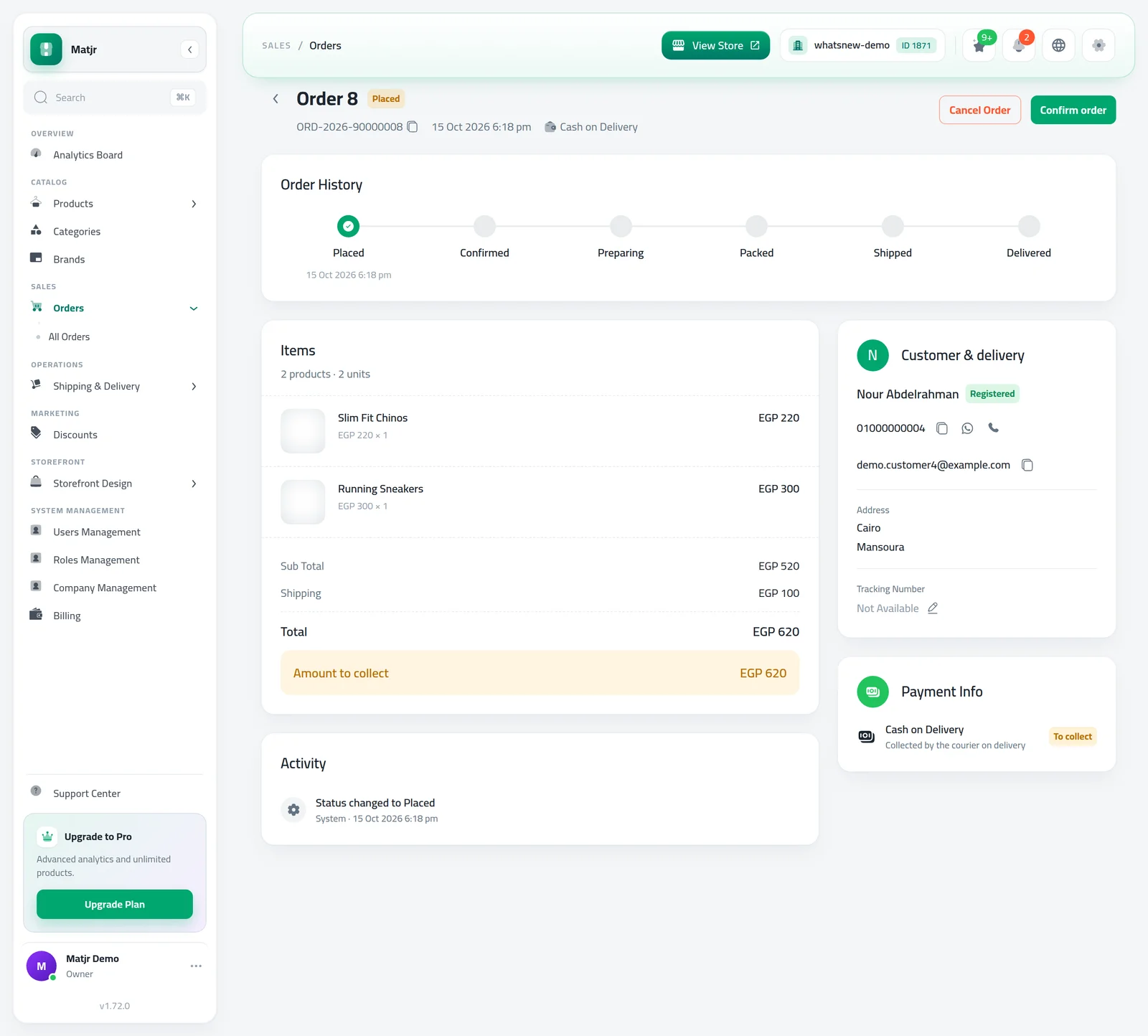
The top of the page shows one status label, the order code (click it to copy), the date and the payment method. Instead of a status list, one button names the next step: Confirm order, Start preparing, Mark as packed, Mark as shipped or Mark as delivered. Cancel Order stays close by.
A progress bar shows every step of the order. Orders that are waiting for payment, whose payment failed or that were canceled show a clear message at the top.
Customer & delivery shows whether the customer is registered or a guest. Next to the phone number you can Copy it, open WhatsApp or Call. The address is split into its parts, and you can edit the tracking number or create a delivery order from the same card.
The Items card now holds the warehouse choice for each item, for stores that use warehouses. For cash on delivery, Amount to collect shows exactly what the courier should collect. Card orders show Paid by card. The Activity card lists every change to the order.
How to use it
Open Orders and click an order. Check the progress bar, then click the next-step button, for example Confirm order.
To reach the customer, use Copy, WhatsApp or Call next to the phone number in Customer & delivery. For cash on delivery, check Amount to collect before you hand the parcel to the courier.
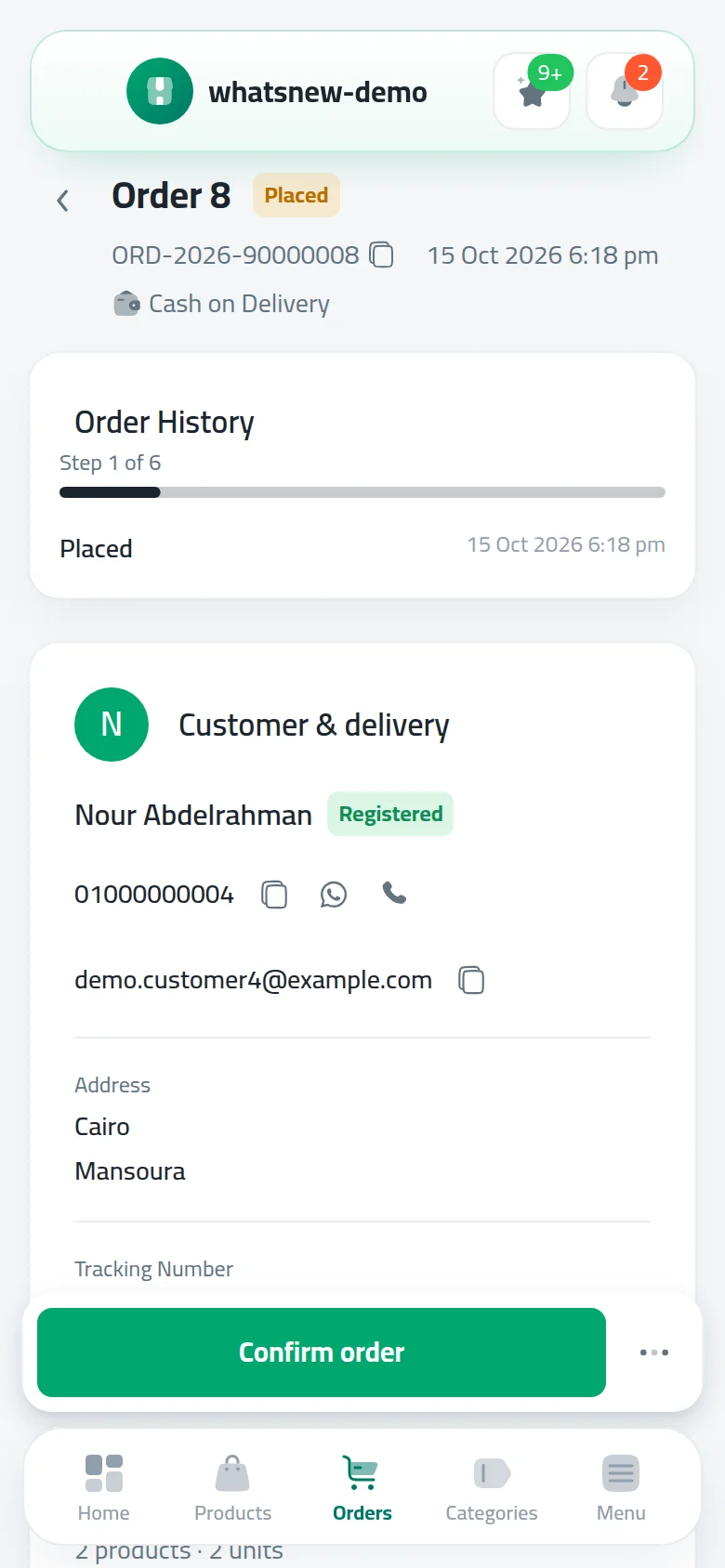
On a phone, the customer and delivery details come first, and a bar above the bottom tabs holds the next step and a menu with Cancel Order.
Good to know
- The button moves an order forward one step at a time. A canceled order cannot be moved again.
- Team members see only the buttons their permissions allow, as before.
- Before an order is confirmed, the warehouse shows Chosen after you confirm.
- Related: how to choose when stock is deducted from orders and how to see how your customers pay for their orders.
Frequently asked questions
Where did the status list go?
One button now names the next step and moves the order forward. To stop an order, use Cancel Order.
Can I message the customer on WhatsApp from the order?
Yes. Click WhatsApp next to the phone number in Customer & delivery and the chat opens straight away.
How do I know how much the courier should collect?
For cash on delivery orders, Amount to collect shows the exact amount, and later whether it was collected.
Where do I choose the warehouse for an item?
In the Items card, on each item's row, once the order is confirmed.
Try it on your own store
Start your free trial. No credit card required.