Marketing
Shoppers can now browse and buy every offer on one page
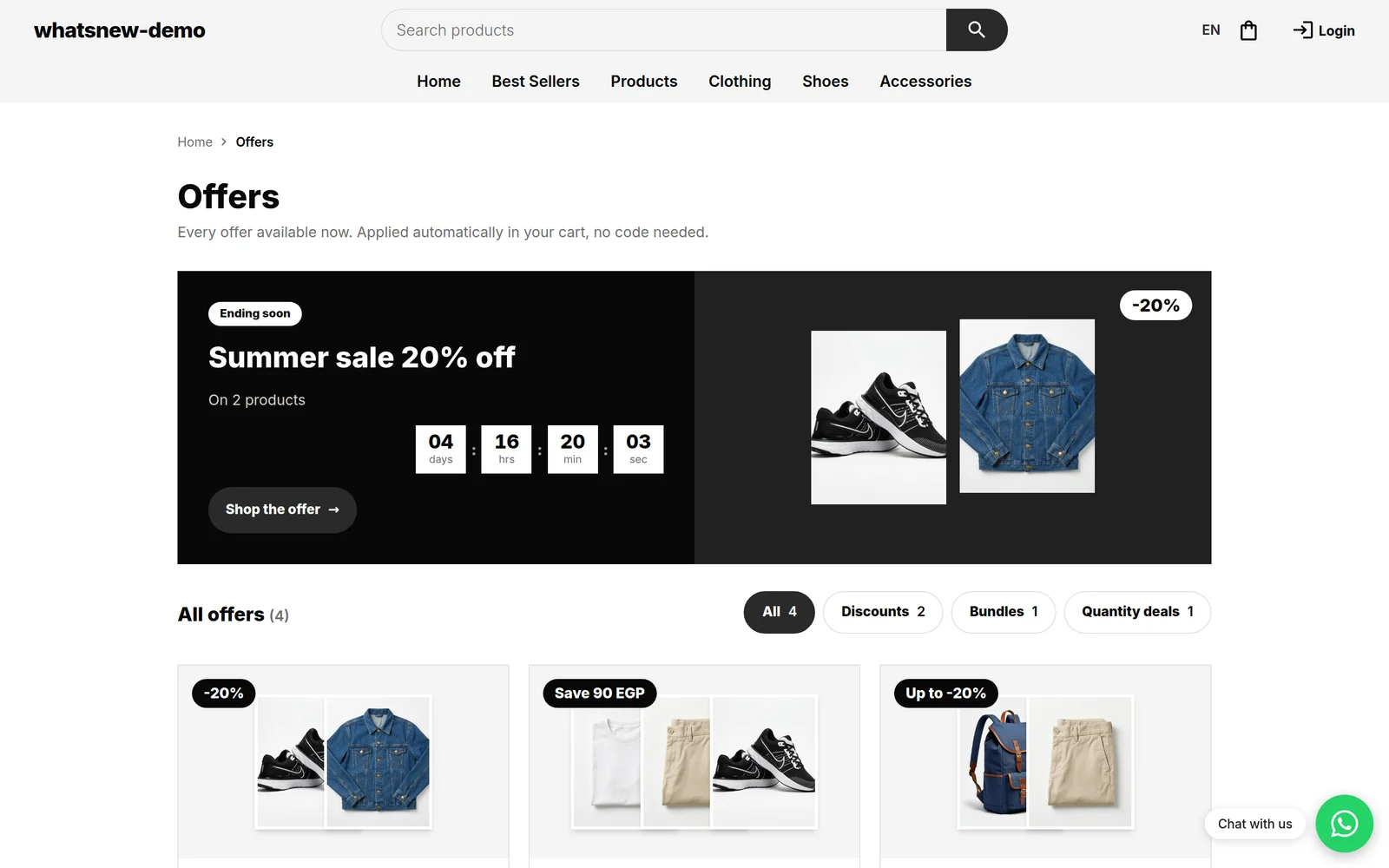
Your store's Offers page now shows every live offer with product photos, a countdown and tabs by type, so shoppers find a deal and buy it fast.
- Where shoppers see it
- Offers in your store menu
- Offers shown
- Active automatic discounts, bundles, Buy X Get Y and bulk pricing
- Setup
- None, it uses your live offers
- Languages
- Arabic and English, phone and desktop
Shoppers who tap Offers in your store menu now land on a page they can buy from, not a plain list. Every live offer shows its products, the saving and how long it has left, so a good deal is easy to spot and quick to act on.
What changed
- The offer ending soonest sits at the top with a live countdown when it ends within 7 days.
- Tabs for All, Discounts, Bundles and Quantity deals, each with its count.
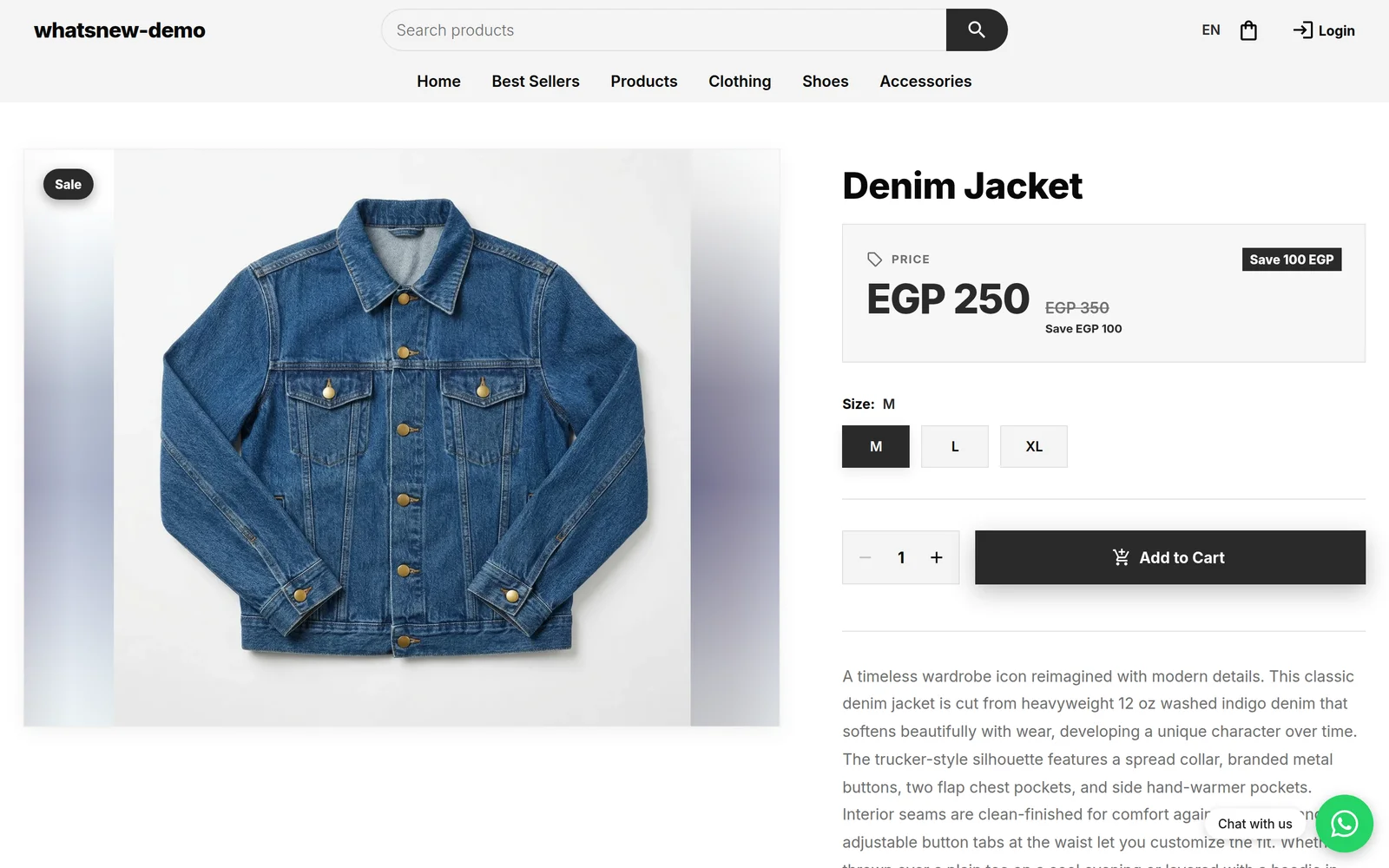
- Offer cards show up to 3 product photos and how many products the offer covers. A discount on one product shows the sale price next to the old price, a bundle shows its price next to the price bought separately, and a quantity deal shows its price steps.
- Add to cart right on the card for an offer on a single product with no sizes or colours. Other offers open a page with all the products in the offer.
- A free shipping note at the top when your store offers free shipping.
How to use it
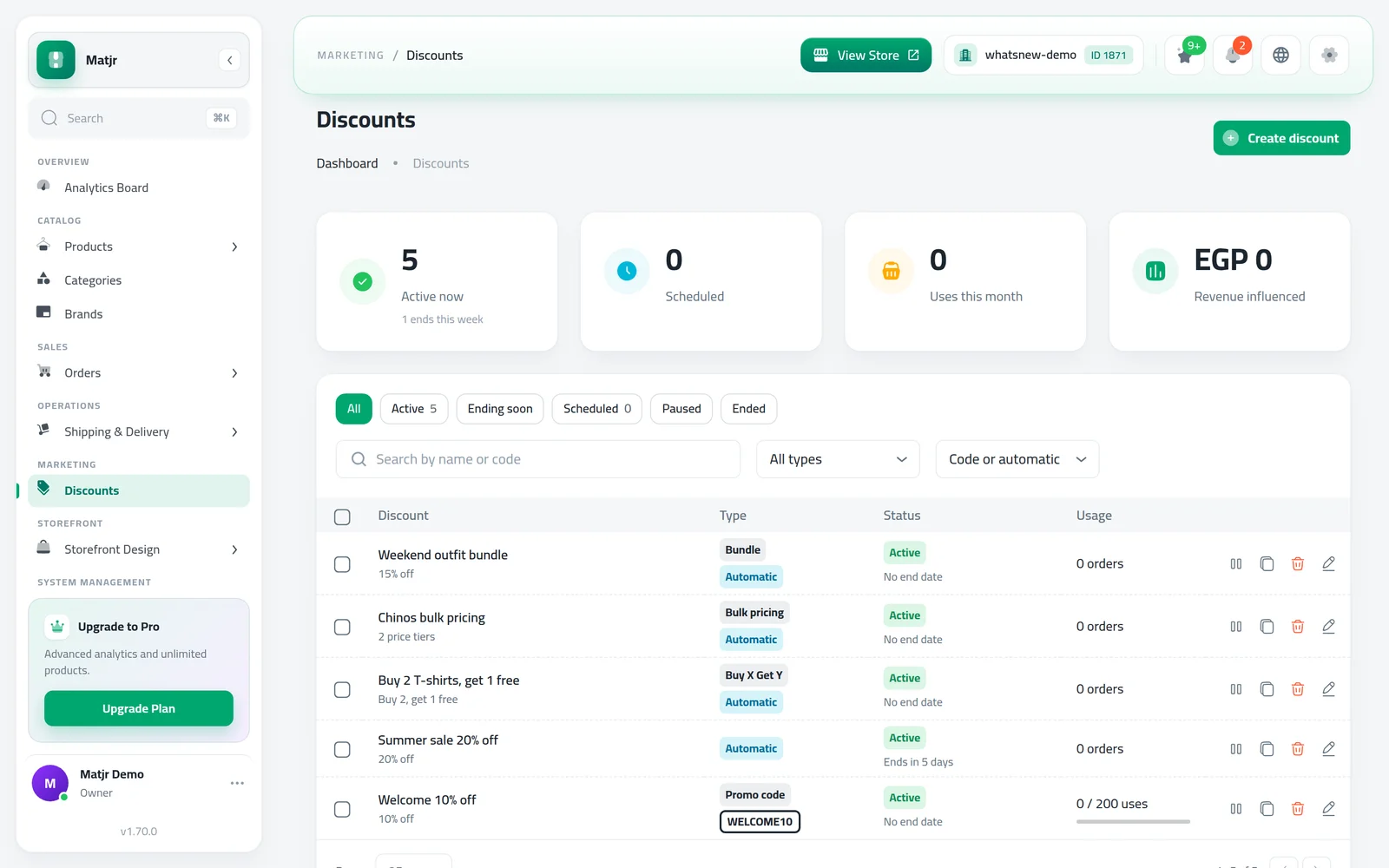
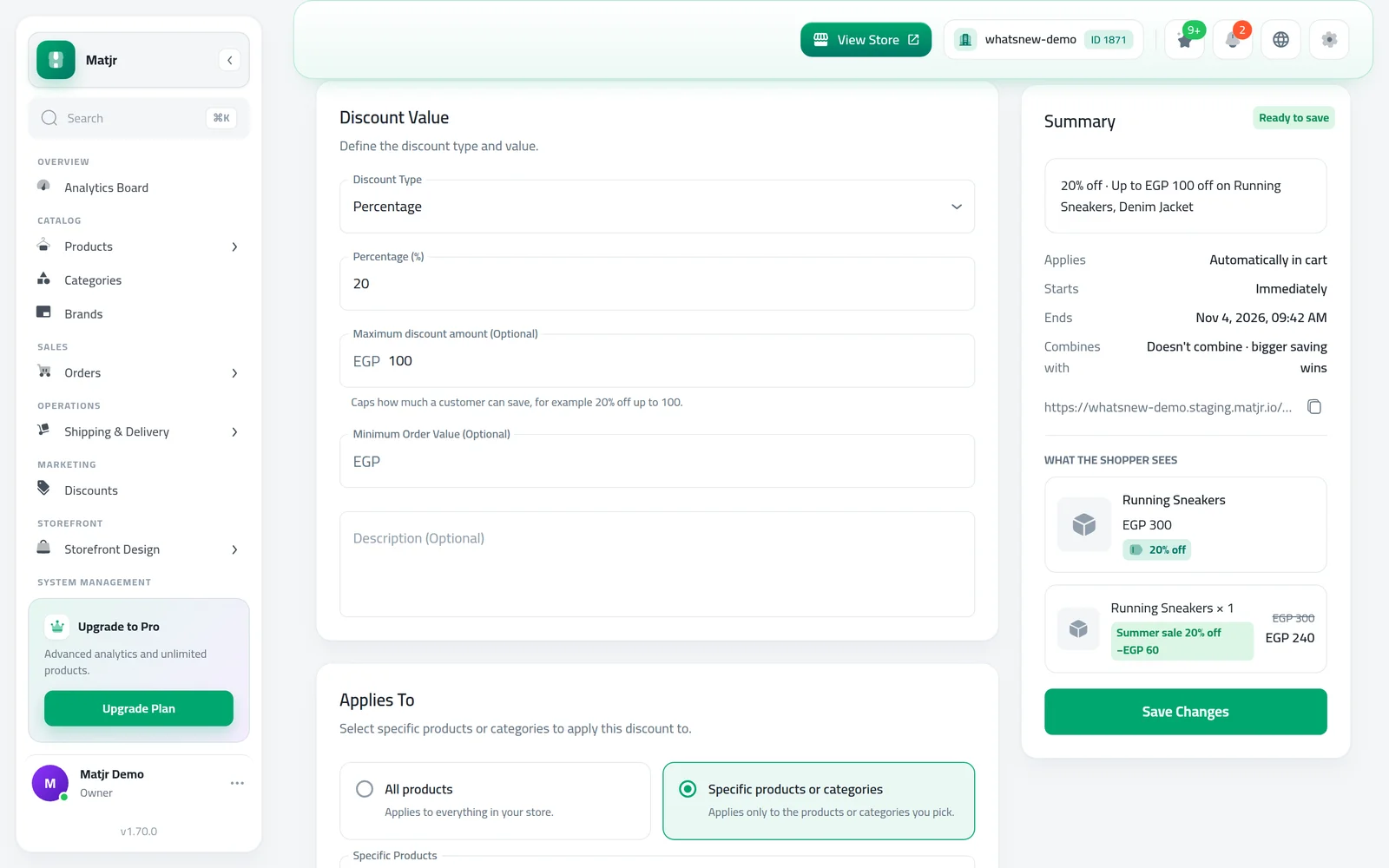
Open Marketing › Discounts and check your offers. The page shows every active automatic discount, bundle, Buy X Get Y and bulk pricing offer.
Open your store and tap Offers in the menu. Shoppers see the offer ending soonest at the top, then every offer as a card.
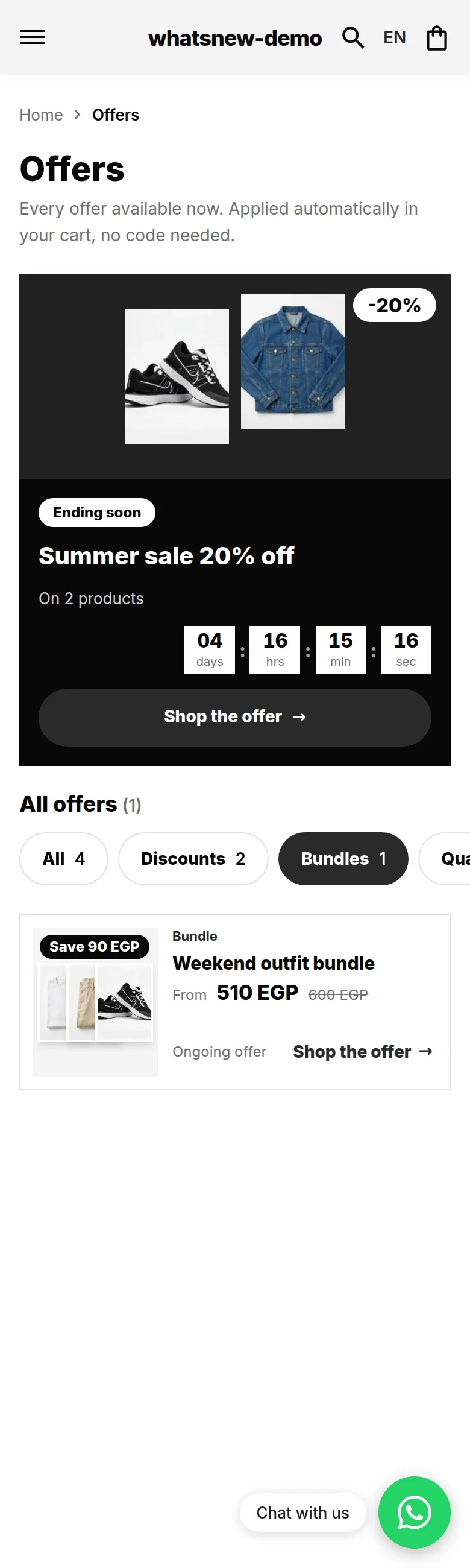
On a phone, shoppers switch between offer types with the tabs and load more offers as they scroll.
Good to know
- The Offers link in your store header, footer and side menu now opens this page. If you only use sale prices on products and have no live discounts, the page says there are no offers right now and offers a button to browse products.
- Discount codes do not appear here. The page lists offers that apply by themselves in the cart, so shoppers need no code.
- Time left turns red in the last 48 hours of an offer.
- Order emails, both the customer's confirmation and your new-order email, now show each discount between Subtotal and Shipping, so the numbers add up.
Learn how to set up the offers themselves in how to create a discount code and other offers.
Frequently asked questions
Why is my Offers page empty?
It only shows active automatic offers. Create one under Marketing › Discounts, or check that your offer has started and has not ended.
Do my discount codes show on the page?
No. Codes stay with the people you share them with. The page lists offers that apply by themselves in the cart.
Can shoppers add to cart from the page?
Yes, for an offer on one product with no sizes or colours. Other offers open a page with all the products in the offer.
Do I need to change my menu?
No. The Offers link in your store menus opens the new page by itself.
Try it on your own store
Start your free trial. No credit card required.