Store design
Accounts without a password at checkout, and more
Customers get an account from their phone number with no password to type, see the delivery cost as soon as they pick a city, and more.
- Account
- From the phone number, no password
- Where
- Confirm Order Page and Page Builder, Cart
- Delivery cost line
- On by default
- Countries
- Egypt and UAE
Every extra field at checkout costs you orders. This update removes the password from account creation, shows the delivery cost early, and gives you more control over the cash on delivery note and your links.
What changed
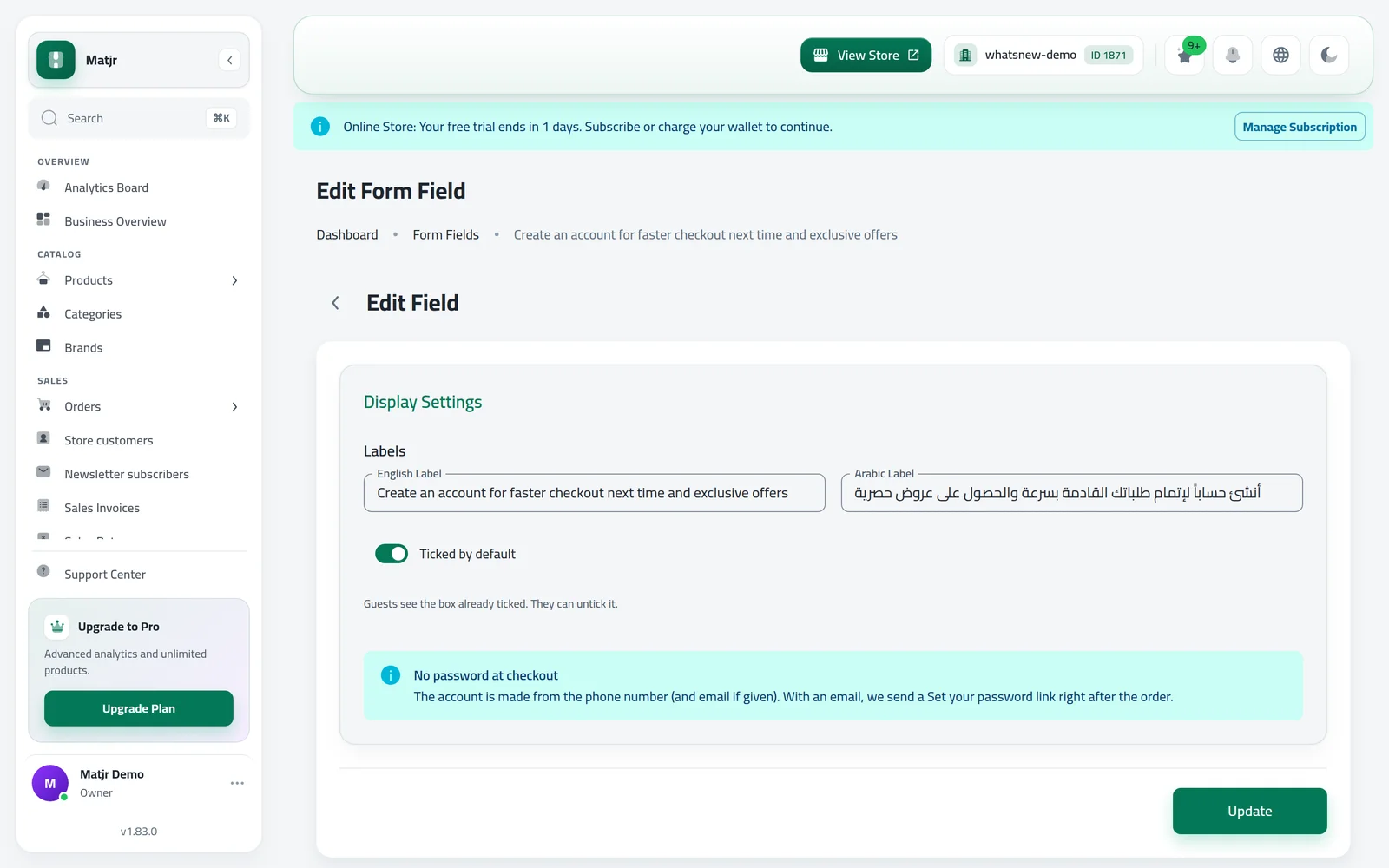
Create an account with no password
When a shopper ticks Create Account at checkout, the account is made from their phone number, and their email if they give one. There is no password to type. If they gave an email, they get a Set your password email right after the order. You can now have the box Ticked by default; shoppers can still untick it.
Delivery cost under the city
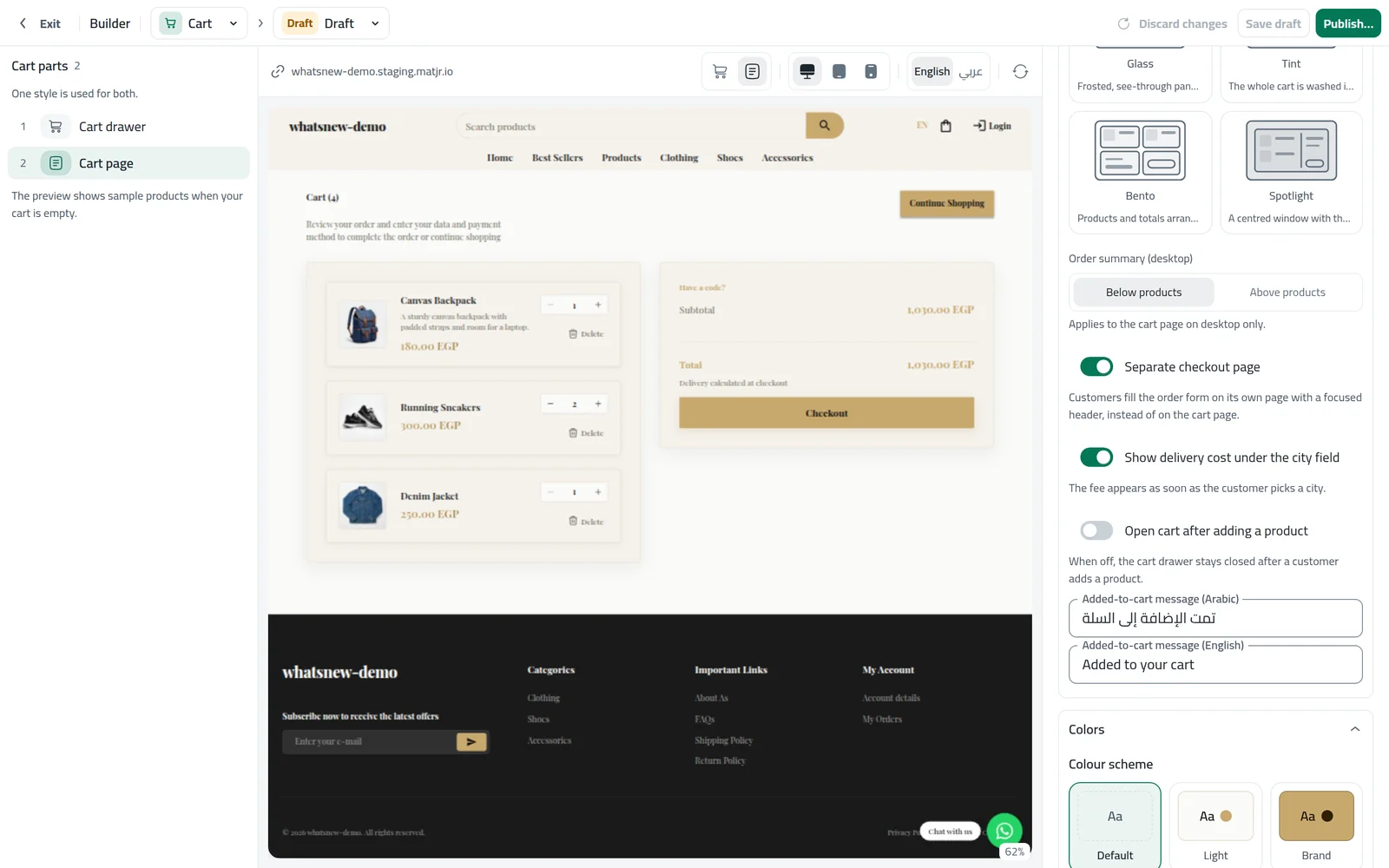
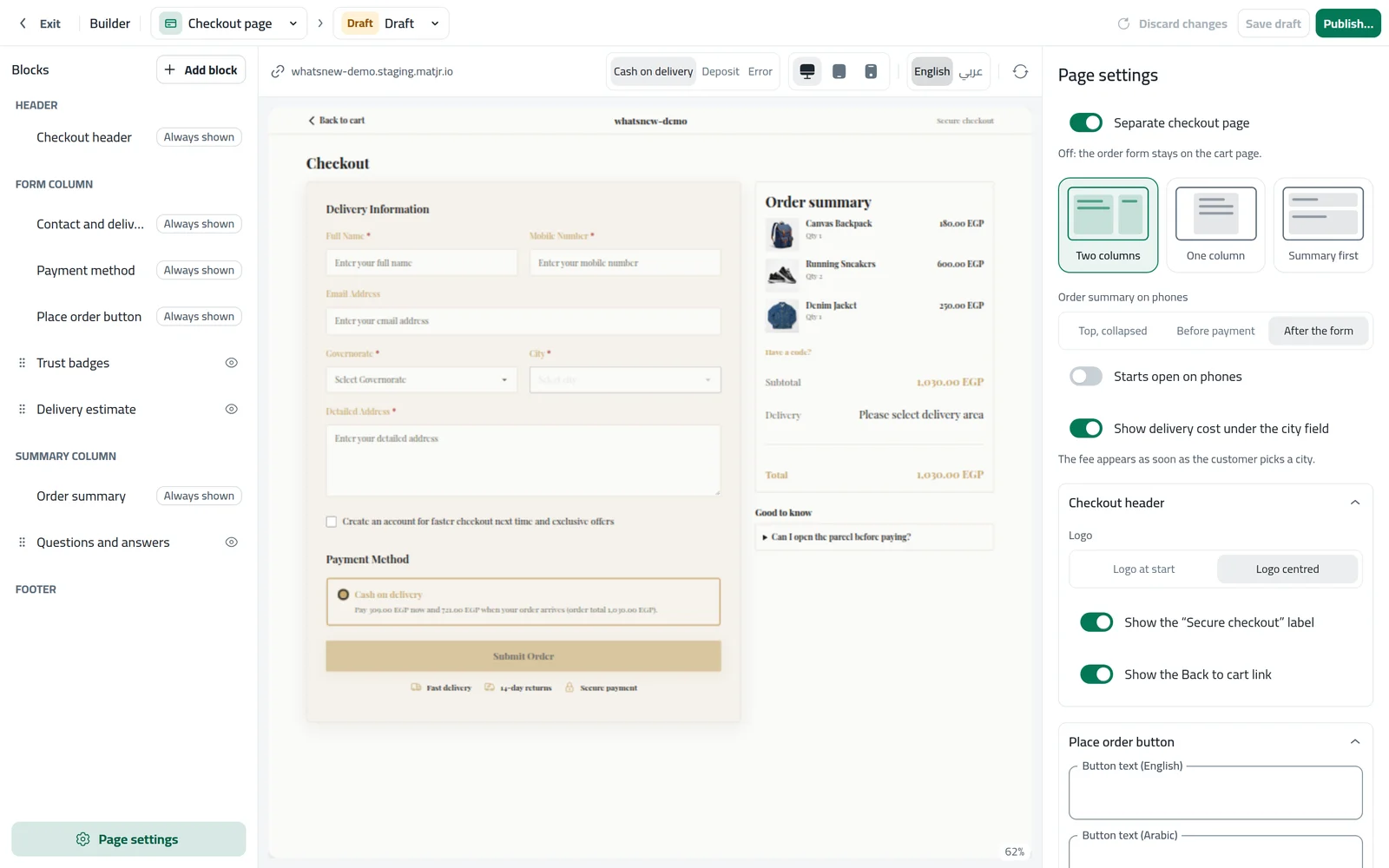
As soon as the shopper picks a city, the delivery cost shows under the city field, or "free delivery" when it costs nothing. It is on for every store; you can turn it off in the cart builder.
Cash on delivery note size
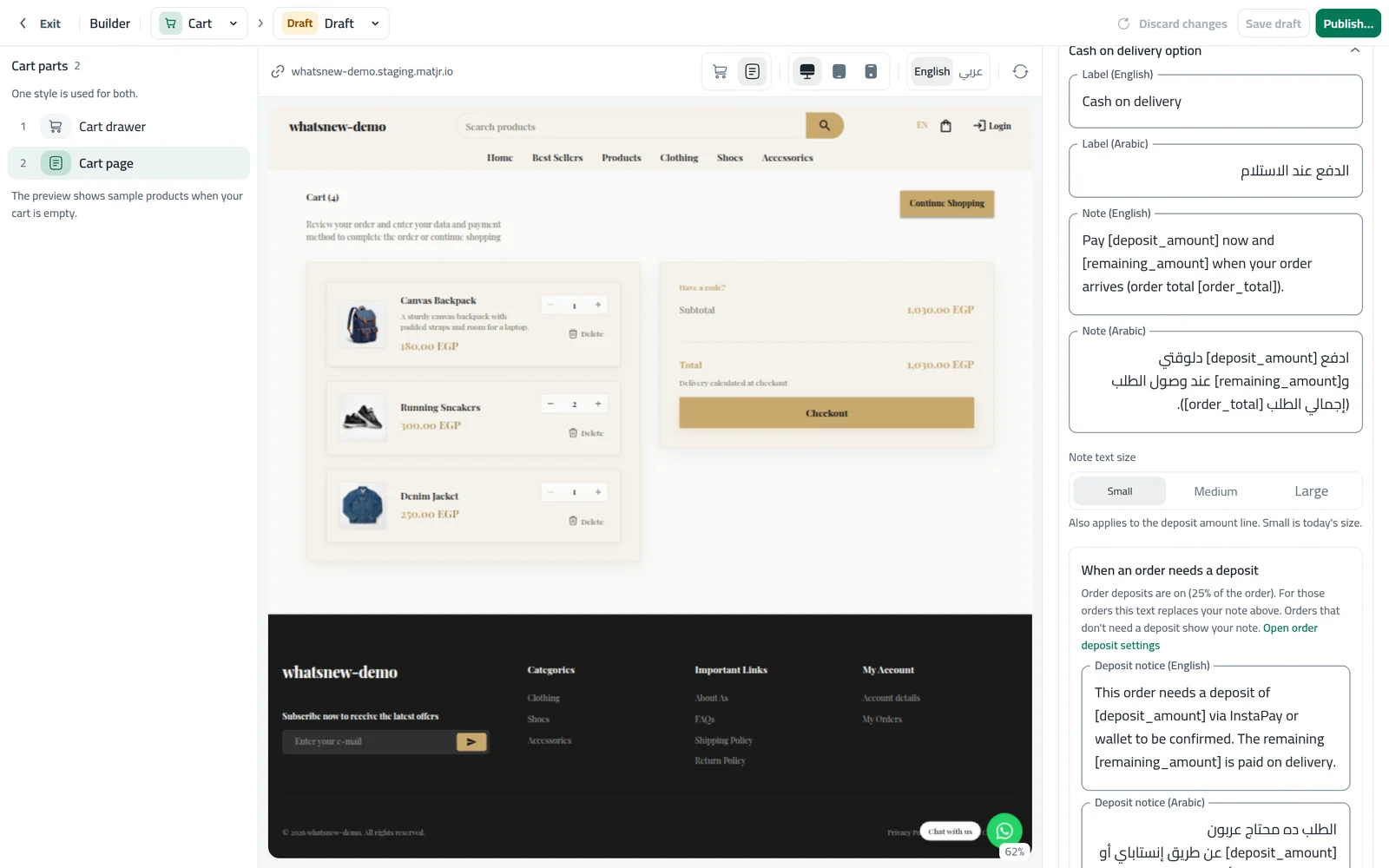
Make the cash on delivery note easier to read: choose Small, Medium or Large. The deposit line uses the same size.
More places to link to
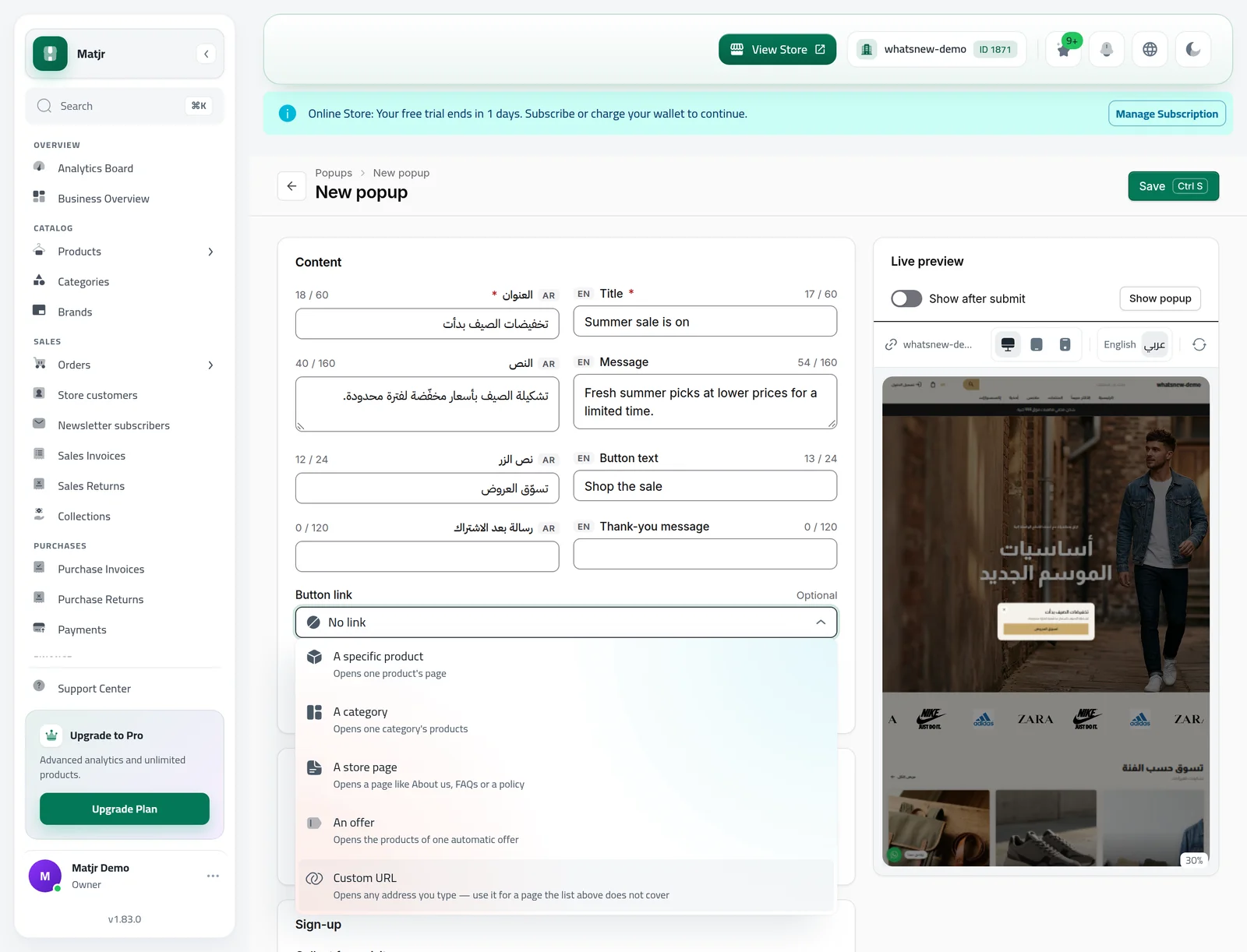
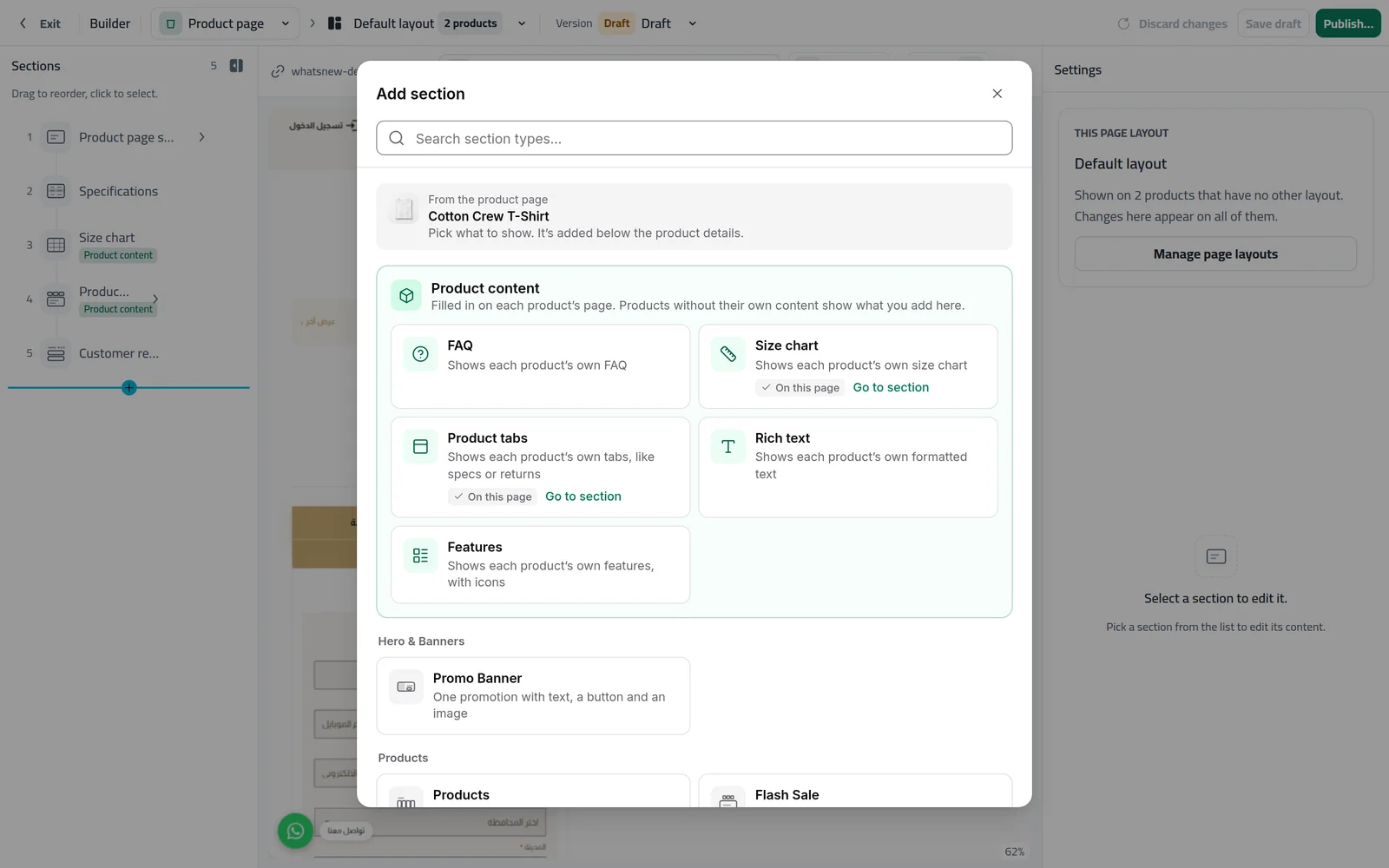
The link picker can now open a category, an offer or a store page such as About us, FAQs or a policy, besides a product, all products or a custom URL.
How to use it
Open Confirm Order Page under Storefront Design, edit the Create Account field and turn on Ticked by default if you want it.
In the Page Builder, open Cart. Under Style, find Show delivery cost under the city field.
Under Cash on delivery option, pick the Note text size.
In any link field, open the picker and choose A category, An offer or A store page.
Good to know
- If the phone or email already has an account, the order is placed as a guest, as before. The order never fails because of the account.
- Shoppers who are signed in do not see the create account box.
- Small is the size the note had before, so nothing changes until you pick another size.
- Read how to let customers create an account at checkout.
Frequently asked questions
How does a customer log in without a password?
If they gave an email, they get a Set your password link after the order and can log in with it. They can also use Forgot password later.
What if the phone number already has an account?
The order goes through as a guest order, exactly as before.
Can I hide the delivery cost under the city?
Yes. Turn off Show delivery cost under the city field in the cart settings of the Page Builder.
Can my buttons link to an offer?
Yes, to an automatic offer that is running or scheduled. Paused and ended offers are not listed.
Try it on your own store
Start your free trial. No credit card required.