Store design
Rename, hide and tidy each filter on your products page
Give each filter your own title, show only the values you want, choose how it looks, or hide it. Tags are now a filter too.
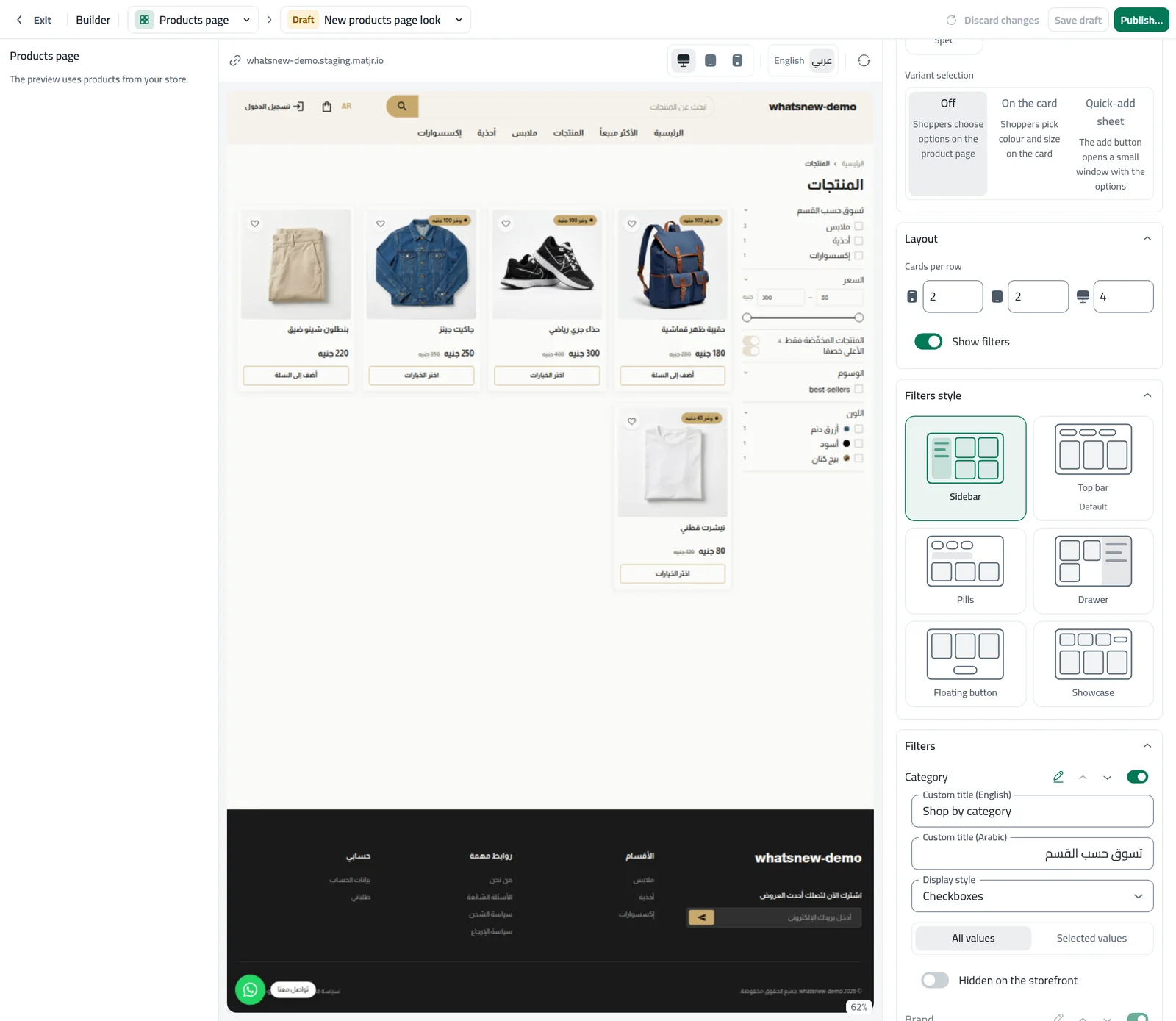
- Where
- Page builder, products page, Filters
- Options
- Title, style, hide, values
- New
- Tag filter
Make your filters match the way your customers talk. Rename a filter, keep only the useful values, and hide what you do not need.
What changed
Each filter on the products page now has its own edit panel. You can set a title in each language, choose a display style (checkboxes, dropdown or multi-select dropdown), and hide the filter without deleting it. Choose Selected values to pick which values appear, reorder them and give each one your own label.
A new Tag filter lets shoppers narrow products by tag.
How to use it
Open the page builder and choose the products page. Select the Filters block.
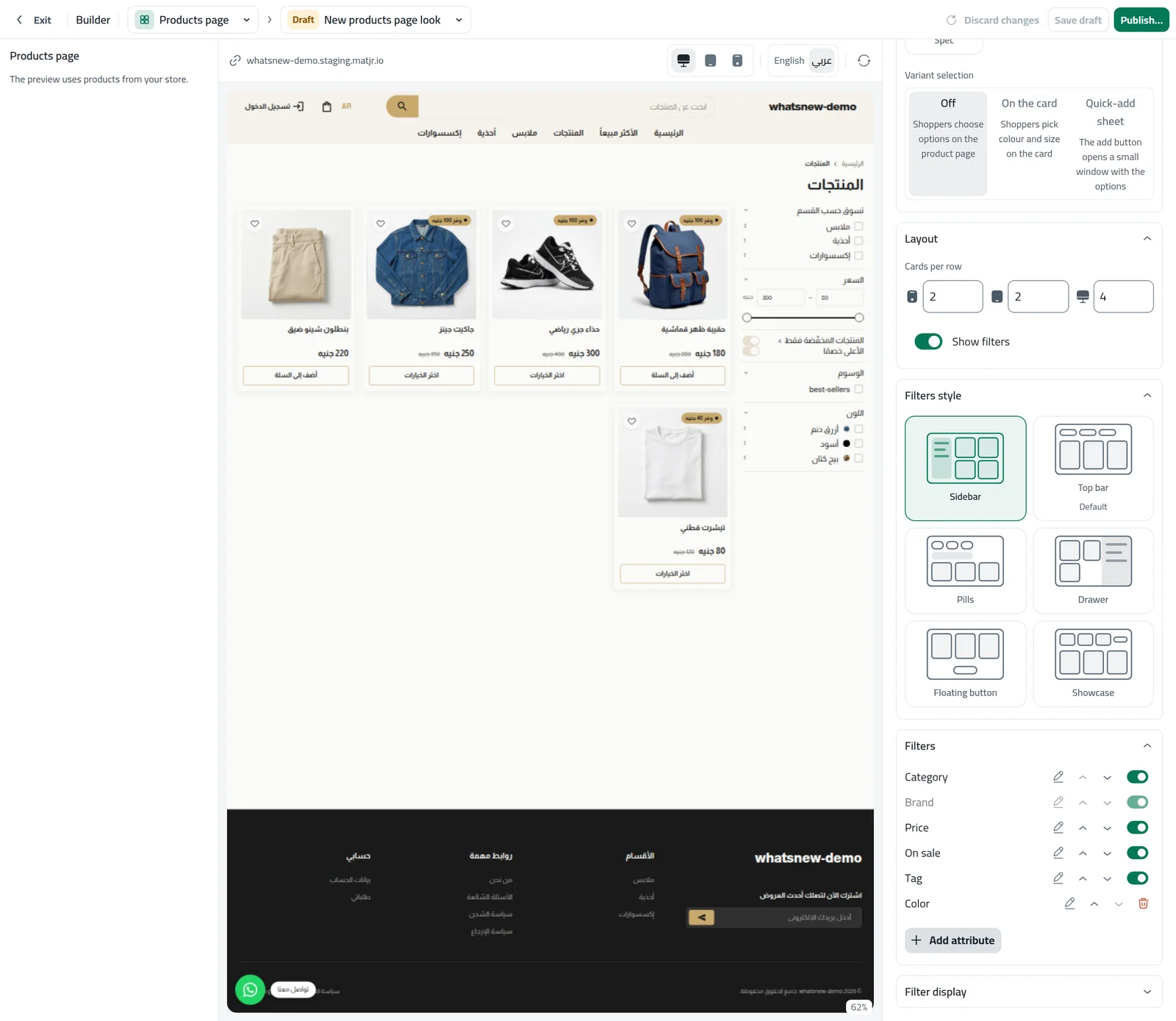
Press Edit filter on a row. Set the custom title, Display style and whether it is hidden.
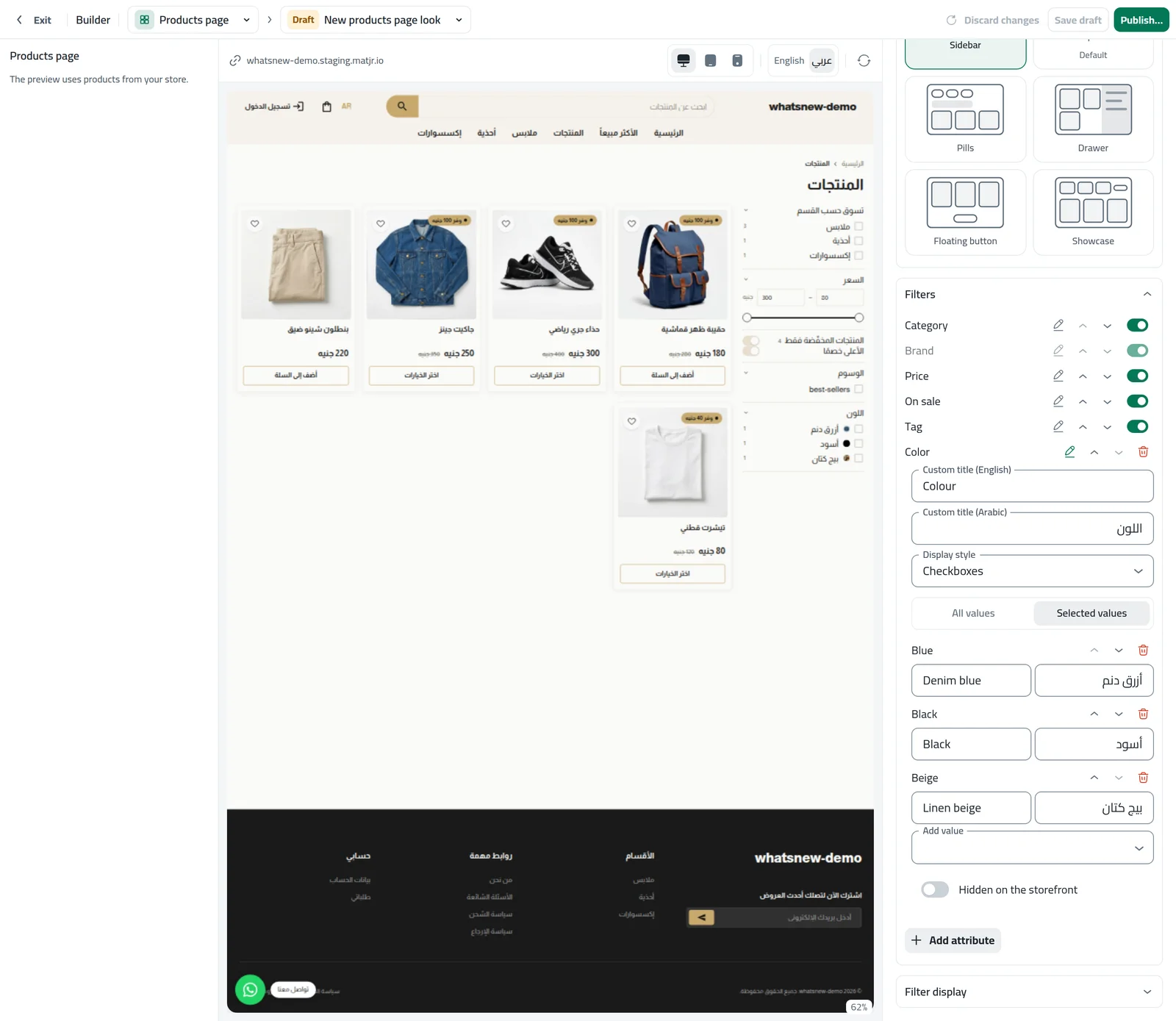
Choose Selected values, pick and reorder the values, then publish.
Good to know
- Hidden filters are dimmed in the list and do not show in your store.
- Display style does not apply to price and on sale filters.
- Inside top bar and pill menus, dropdown styles keep a simple list so menus do not nest.
Frequently asked questions
Does hiding a filter delete it?
No. It stays in your list, dimmed, and you can show it again any time.
Can I rename a single value, like a colour?
Yes. Choose Selected values and set the label in each language.
Do the changes show right away?
They show in your store after you publish.
Try it on your own store
Start your free trial. No credit card required.