Orders
Ask for a deposit before you ship cash on delivery orders
Fewer refused parcels: ask shoppers for a deposit on cash on delivery orders, check their transfer screenshot, then confirm or cancel.
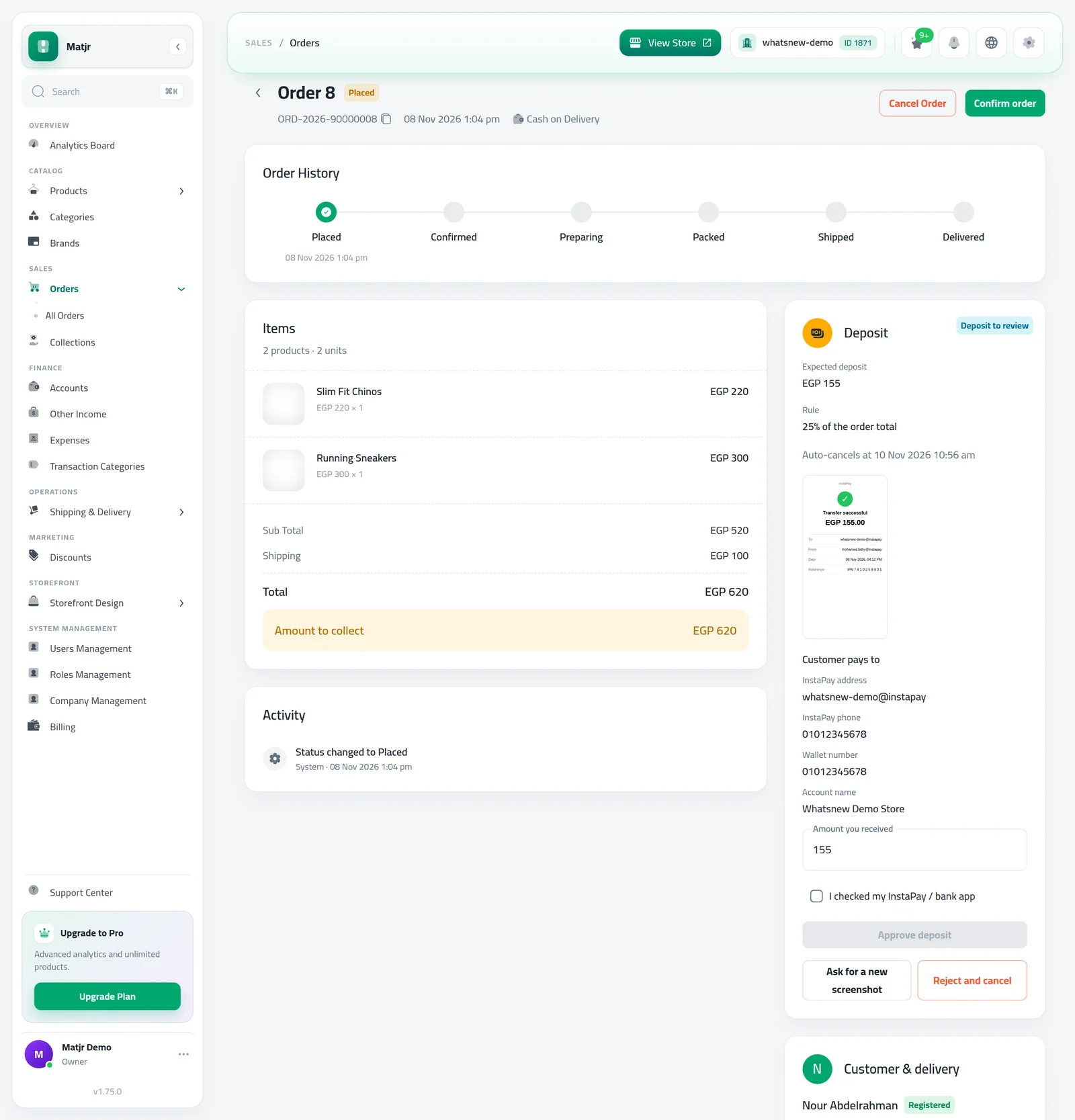
- Where
- Settings, Order confirmation tab
- Deposit
- Fixed amount or % of the order total
- Shoppers pay by
- InstaPay, wallet or bank transfer
- Auto-cancel
- After 48 hours by default
Cash on delivery orders that get refused cost you shipping and tie up stock. Now you can ask for a small deposit first, so only serious shoppers reach your courier.
What changed
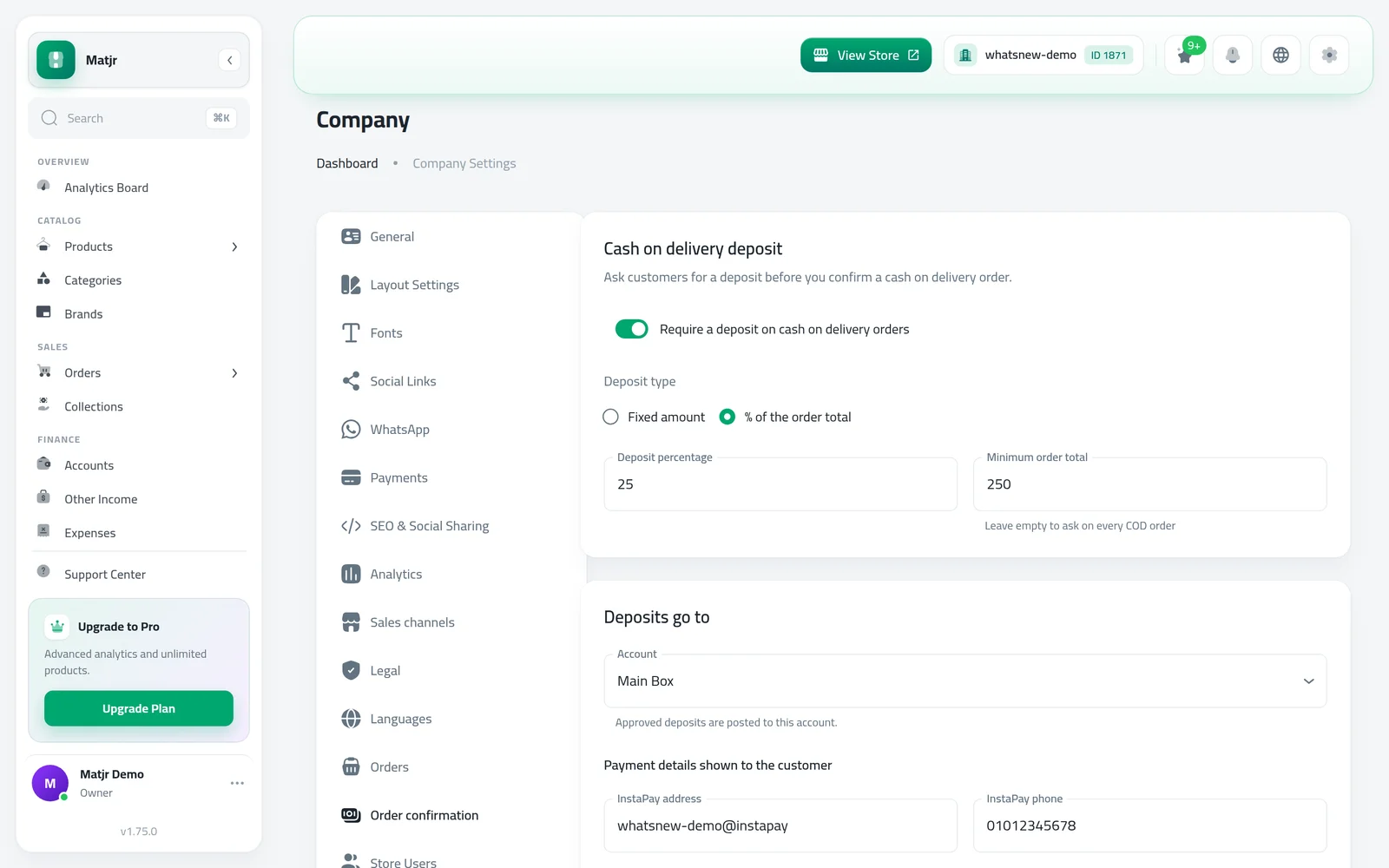
A new Order confirmation tab in Settings lets you require a deposit on cash on delivery orders: a fixed amount or a percentage of the order, optionally only above a minimum order total. You add where shoppers should pay (InstaPay address or phone, wallet number, account name) and the messages they see.
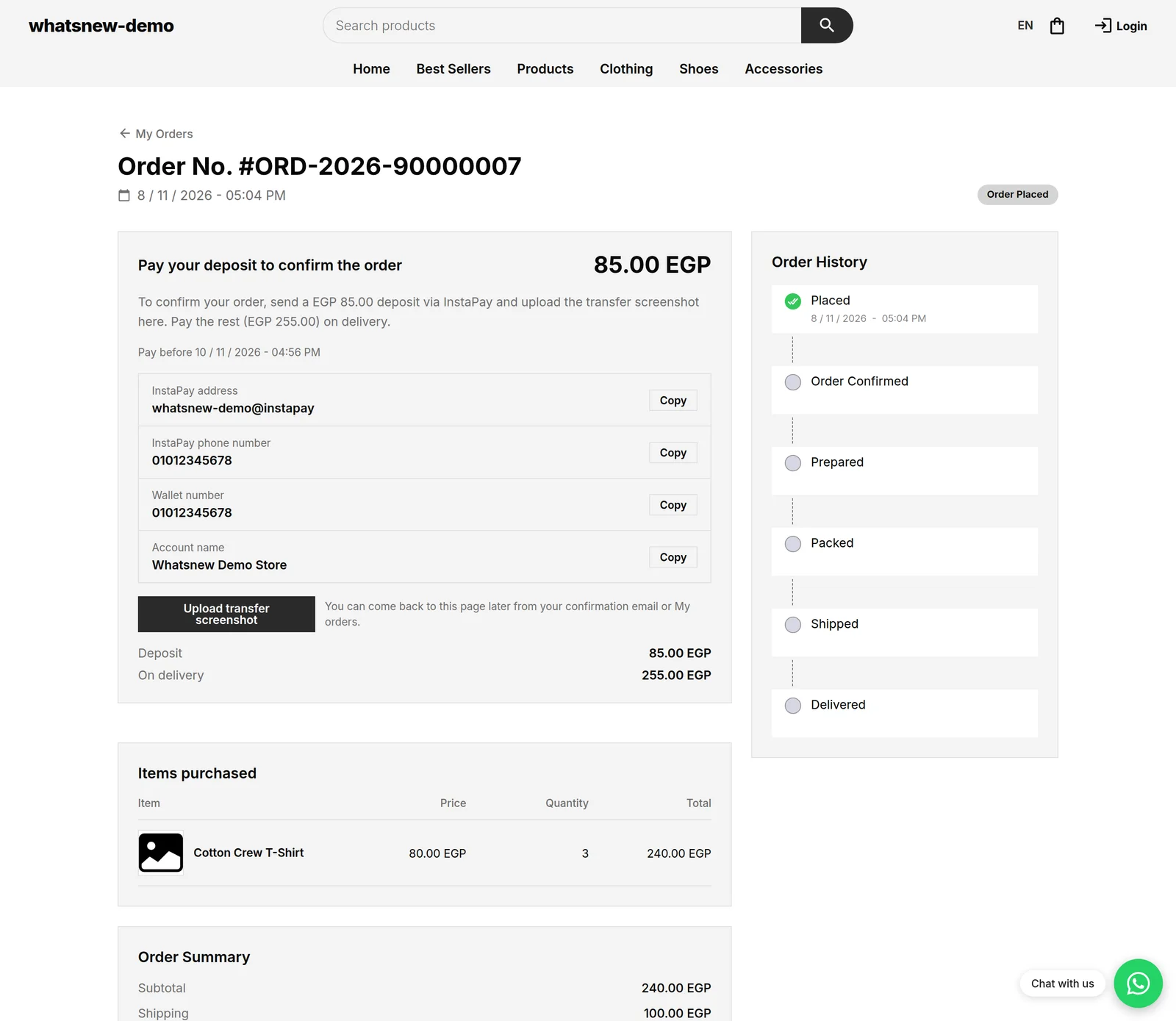
At checkout the shopper sees the deposit and what is left to pay on delivery. After ordering, their order page shows where to pay and lets them upload a screenshot of the transfer. You review it on the order, approve it or ask for a new one, and the shopper gets an email either way.
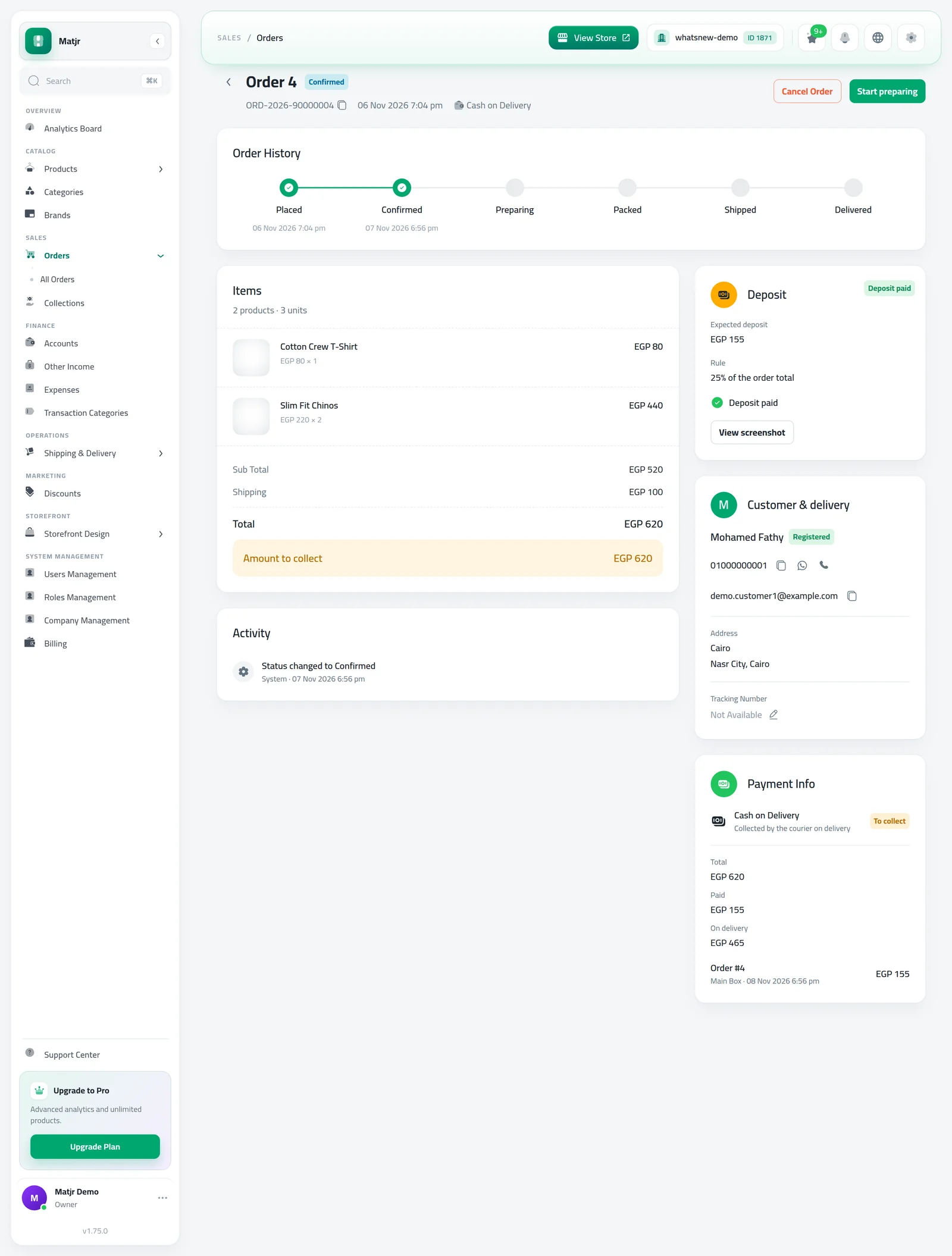
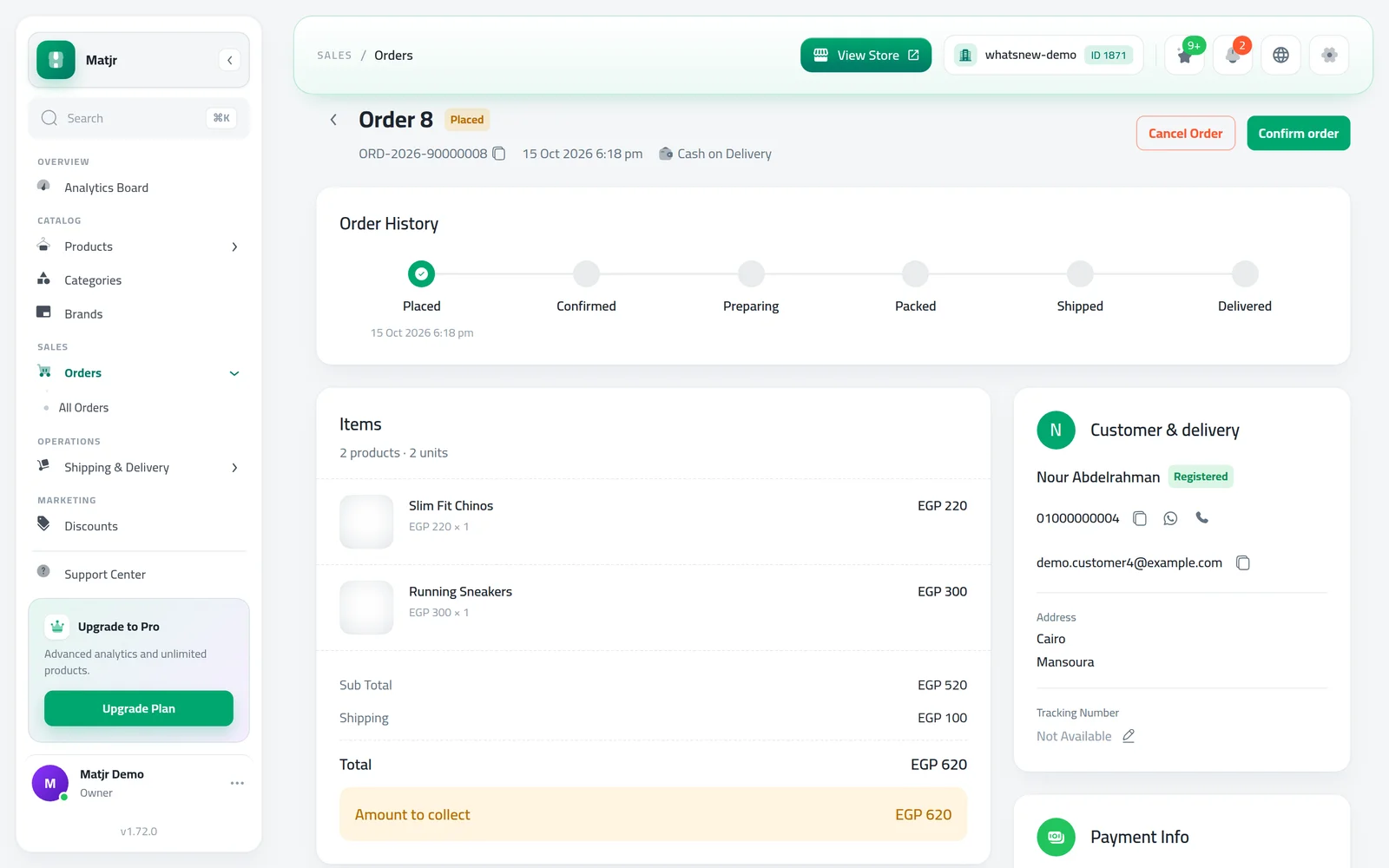
Every cash on delivery order now also has Payment Info: the total, what is paid and what is left to collect on delivery. You can record extra payments and undo them.
How to use it
Open Settings, go to the Order confirmation tab and turn on Require a deposit on cash on delivery orders. Choose the amount and add your payment details.
Shoppers see the deposit on their order page, pay, and upload a screenshot of the transfer.
In Orders, open the To review tab. On the order, check the screenshot, tick I checked my InstaPay / bank app and press Approve deposit.
Use Payment Info on the order to see what is left to collect on delivery, or to record another payment.
Good to know
- Orders that wait for a deposit are not sent to your courier automatically. Book the courier after you approve.
- Not sure about a screenshot? Use Ask for a new screenshot. The shopper can upload again until the order auto-cancels.
- Approved deposits are added to the account you choose, and show in Collections.
- Step by step: How to take a deposit on cash on delivery orders.
Frequently asked questions
Do card payments need a deposit too?
No. The deposit applies only to cash on delivery orders at or above the minimum order total you set.
What if the shopper never pays?
The order cancels itself after the hours you choose and the stock goes back. Orders with a screenshot waiting for your review are never cancelled automatically.
The shopper sent the transfer on WhatsApp. What do I do?
Open the order and use Record deposit. You can attach the photo, and the order is confirmed.
Is the order sent to the courier automatically?
Not while it waits for a deposit. Book the courier after you approve the deposit.
Try it on your own store
Start your free trial. No credit card required.